
Never run out of storage again
Declutter your iPhone camera roll effortlessly with Tinder-style swipe gestures, AI-powered duplicate detection, and batch video compression — all handled securely on-device to free up space and keep your photos private.

Swipe to Clean Up Your iPhone Photos
Detail interactions that make organizing more efficient.
Learn more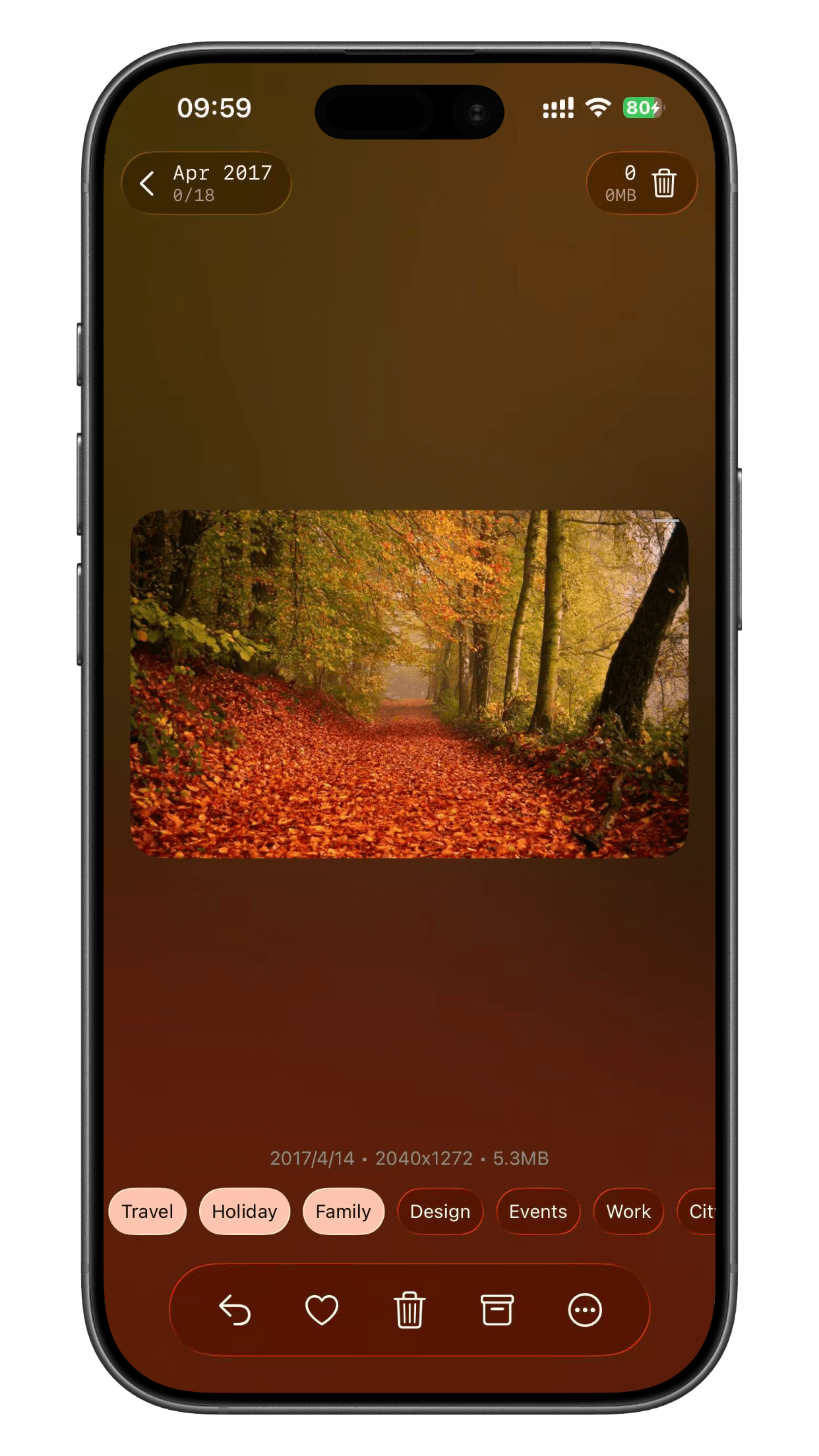
One‑Tap Add to Album
• Tap album to add photo and mark as Keep.
• Current photo's album is displayed at the front.
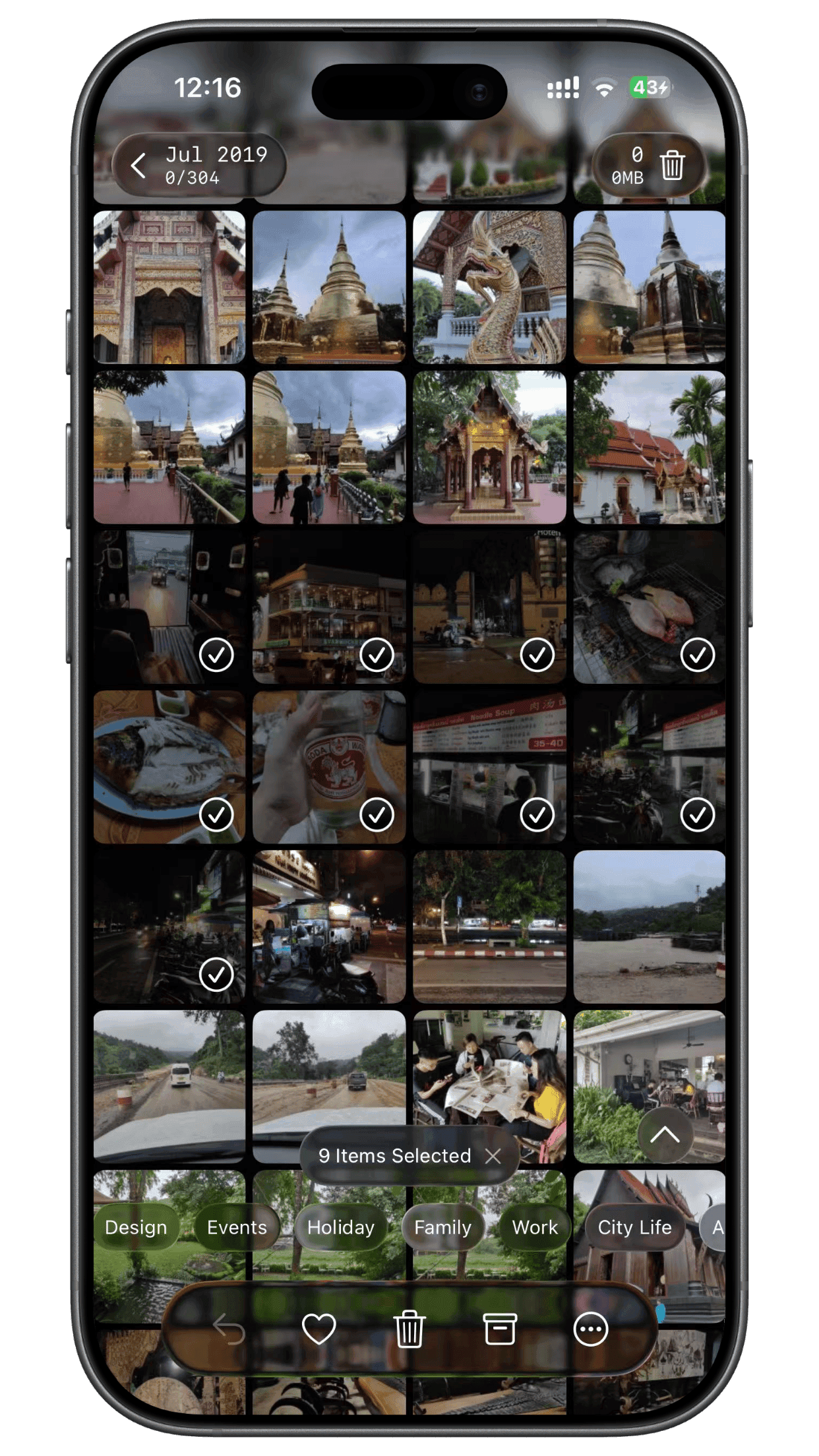
Browse Gallery
• Browse the entire gallery while organizing.
• Multi-select photos to batch mark as Keep or Delete.
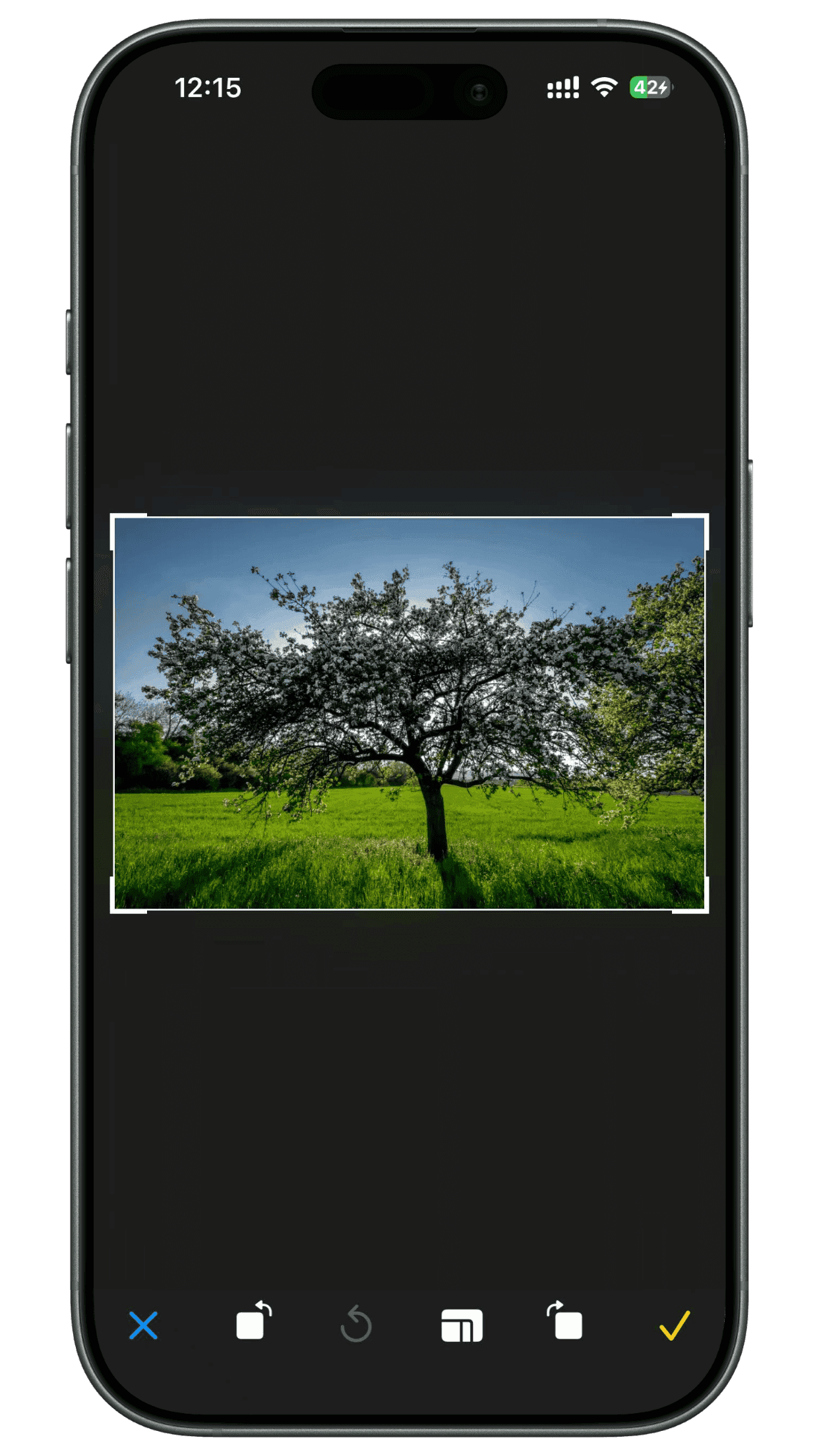
Rotate and Crop
• Edit photos on the fly during organization
• Including rotation and cropping
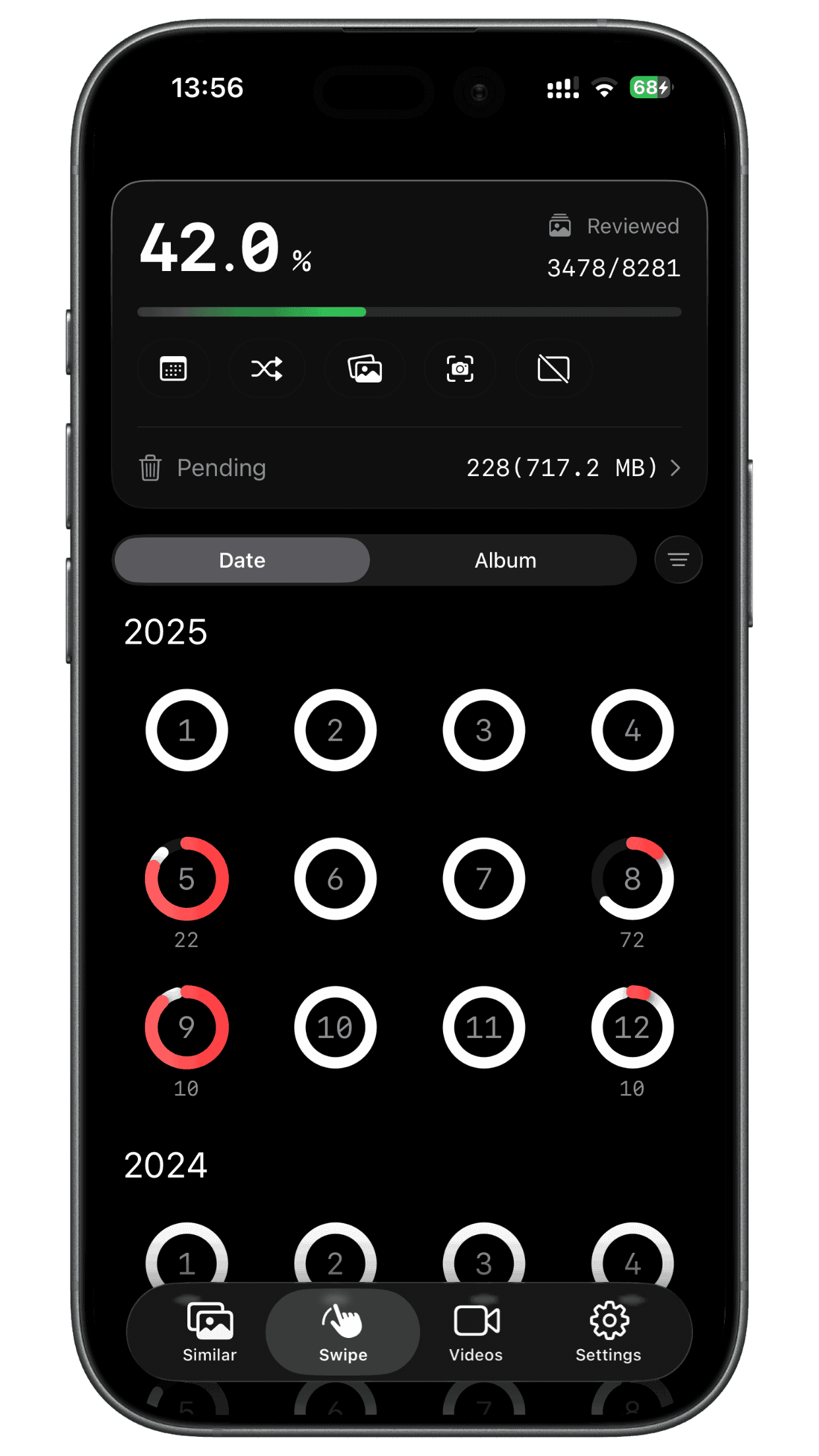
Progress at a Glance
• Track progress with completion percentage and remaining count.
• Organize by month, random, or 'On This Day' modes.
Other Powerful Features
Beyond our core photo cleanup functionality, discover additional tools to optimize your device storage and photo management experience.
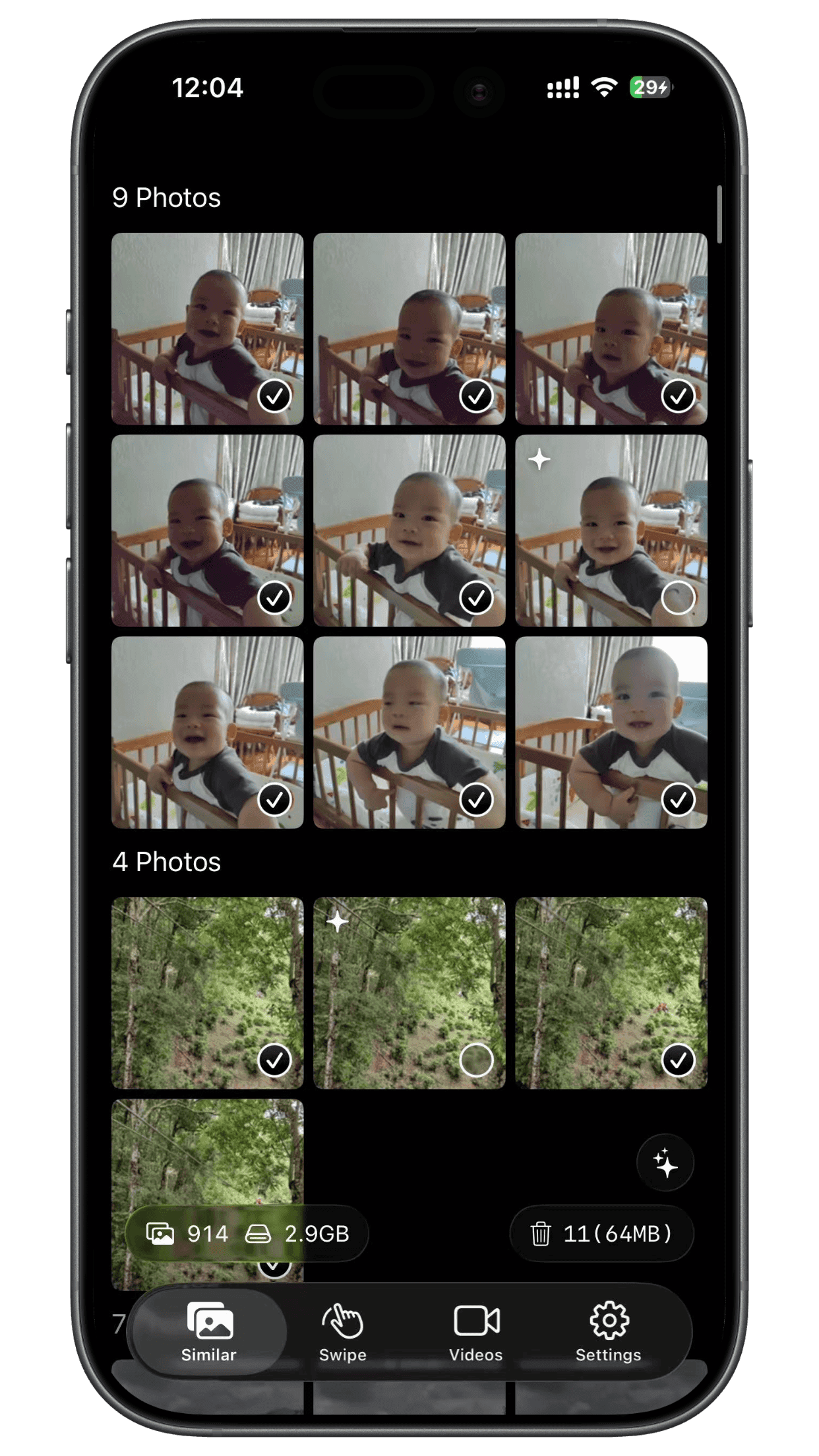
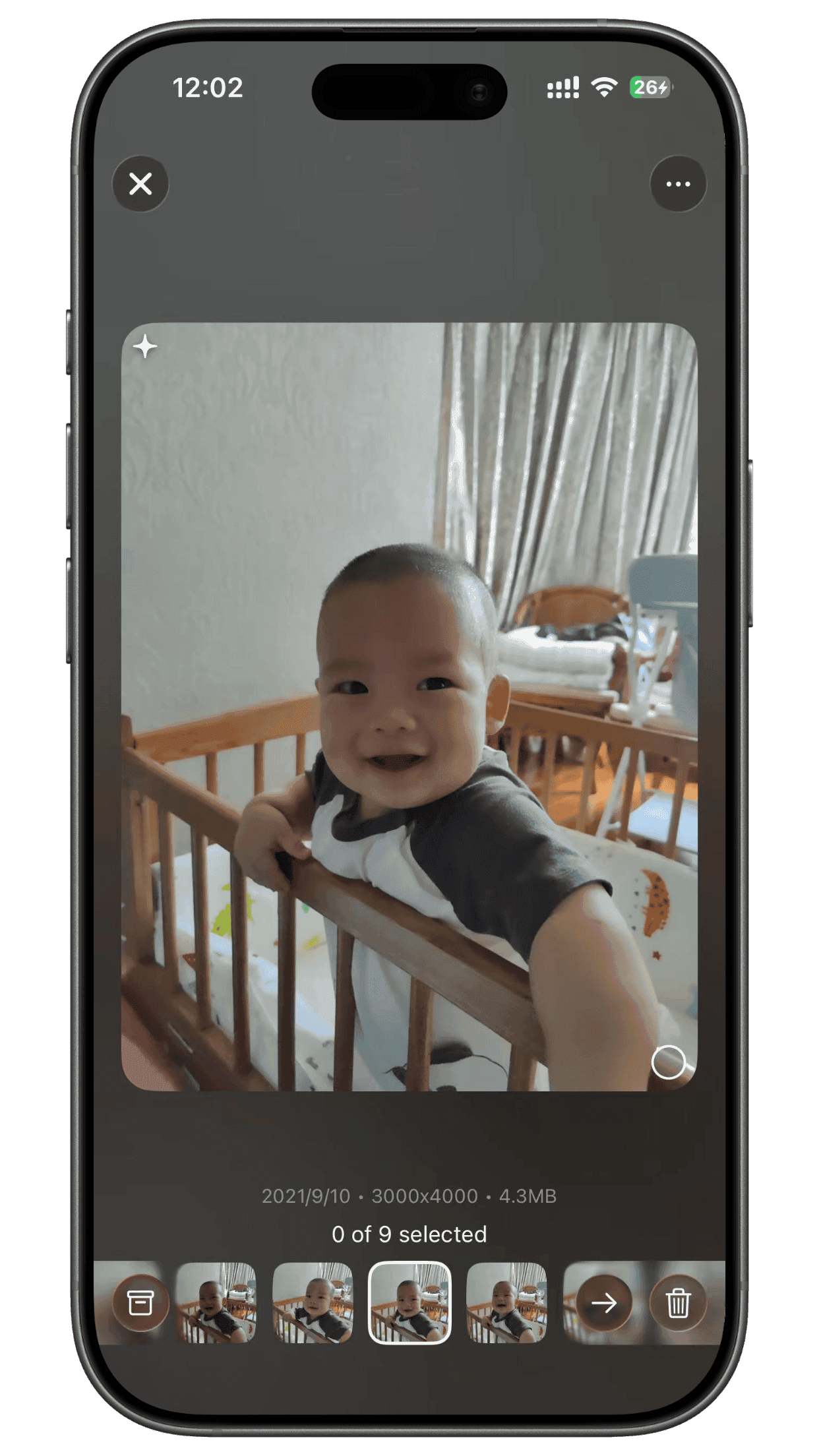
Similar Photo Detection
Automatically group similar photos with smart recommendations for which ones to keep, making cleanup effortless.
Learn moreAI-powered similar photo detection
Smart recommendations for which ones to keep
One-click batch delete similar content
All processing happens on-device to keep your photos private
Video Compression
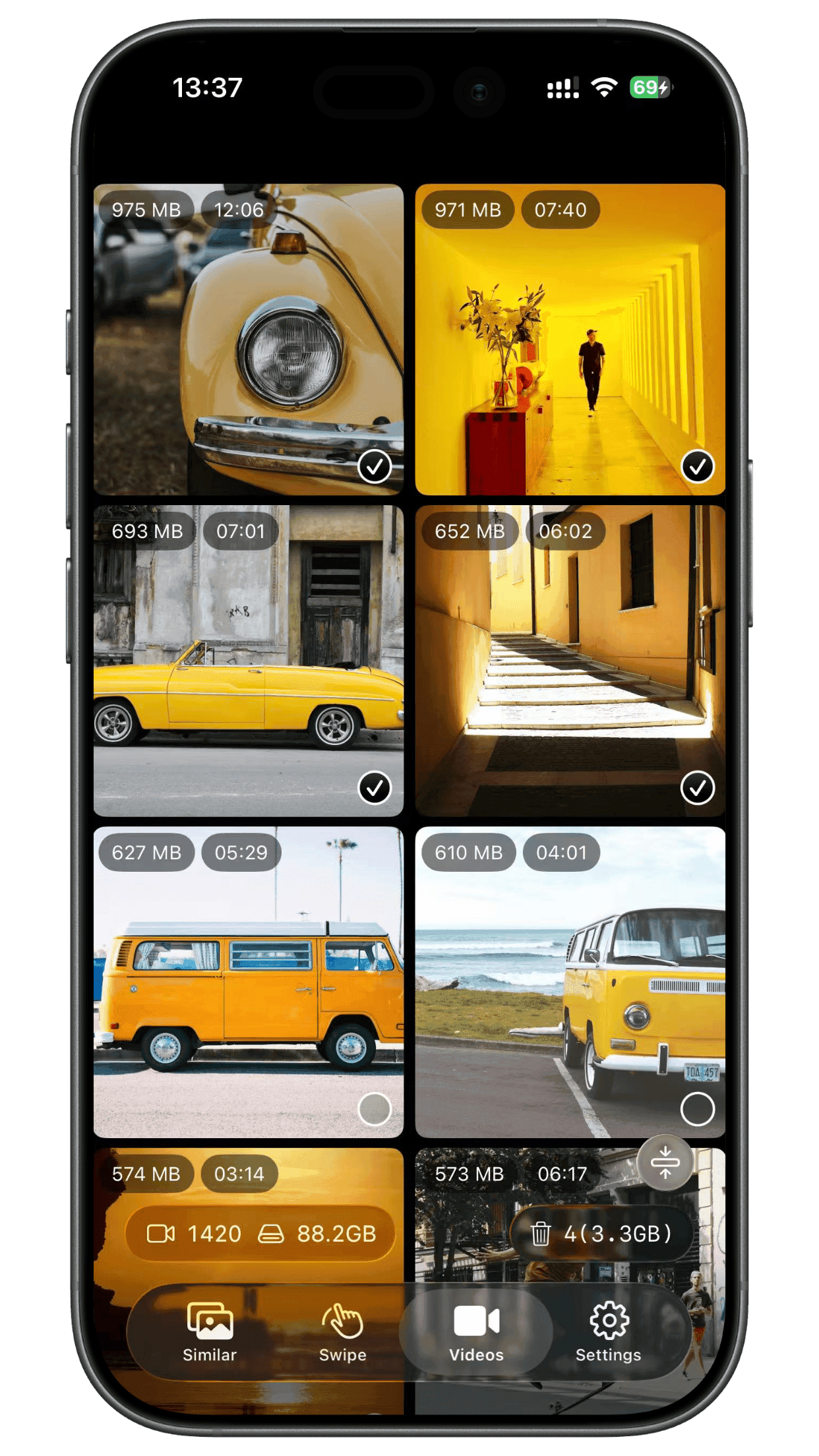
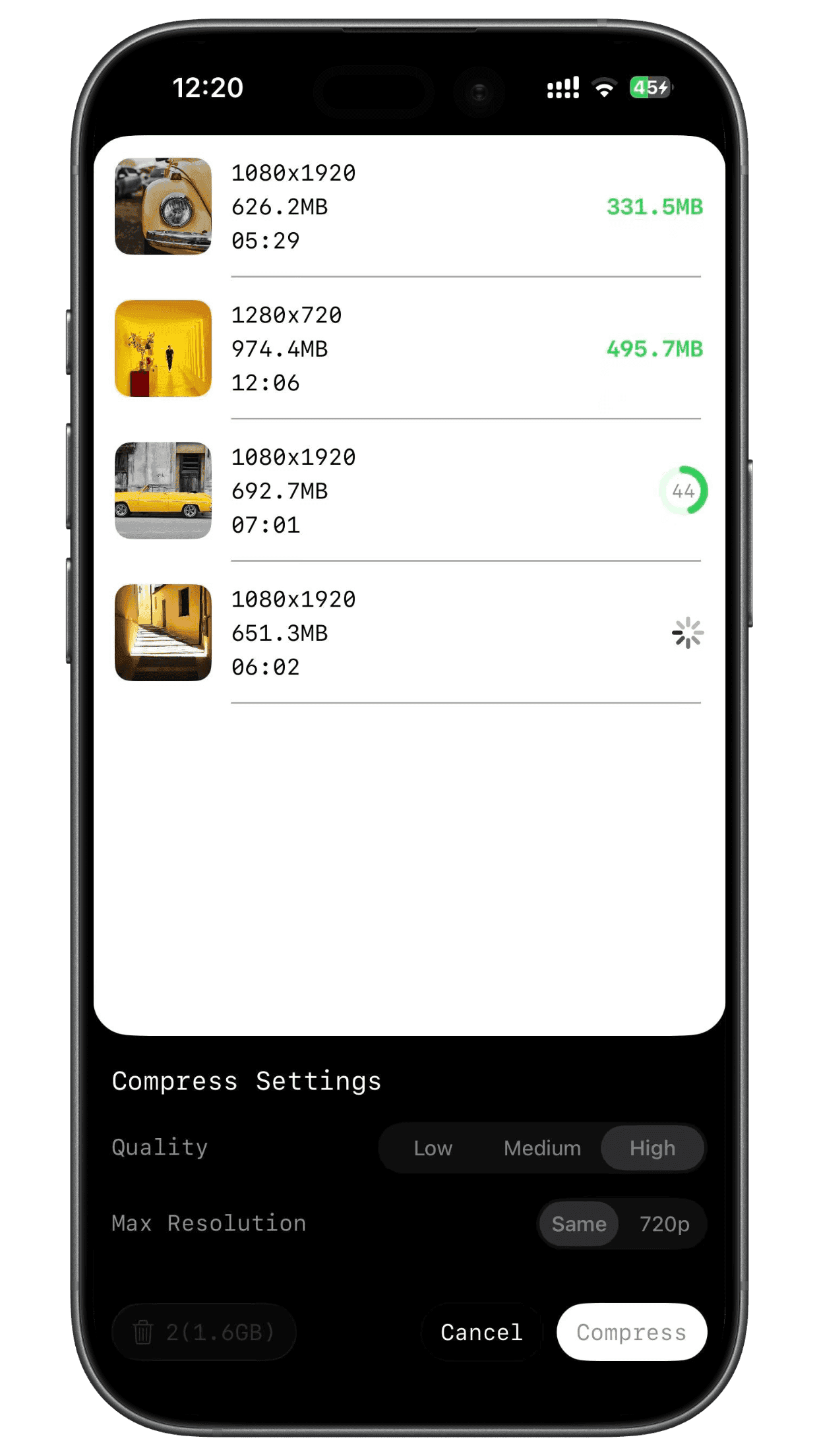
Significantly reduce storage space while preserving visual quality and clarity as much as possible, with all processing completed locally.
Learn moreSort videos by file size to prioritize large files
Batch compression for multiple videos at once
Maintains original quality with up to 90% compression, imperceptible to the naked eye
Local processing protects privacy and security
Frequently Asked Questions
ByePhotos helps you easily organize your phone media files and free up valuable storage space. It detects similar and duplicate photos, compresses videos, and makes cleanup fast and effortless.
Yes. All processing is done completely on your device. ByePhotos doesn't upload or store your photos or videos—no internet connection is required.
Quickly classify with simple gestures and delete unwanted photos in one tap. Multiple modes (Random, By Month, Oldest First, Newest First) let you organize the way you prefer.
No. ByePhotos records your cleanup progress with a real-time display and supports pause and resume at any time—organize a little every day without stress.
ByePhotos supports photos, GIFs, Live Photos and videos.
ByePhotos is free to download and includes a free quota, so you can try every feature on your own library. To clean without limits, choose a monthly or yearly subscription or a one-time lifetime purchase. Purchases support Family Sharing.
Yes. iOS asks you to confirm before anything is removed, and deleted items are moved to the Recently Deleted album in the Photos app, where they stay for 30 days before being permanently erased.
The Duplicates album only covers photos that are identical or nearly identical. ByePhotos also groups photos that are merely similar — burst shots, retakes of the same scene, slightly different angles — and suggests which ones you don't need.
You stay in control. Pick a quality level and a target resolution (original, 2K, 1080p or 720p) and see the estimated file size before you start. Videos are re-encoded with HEVC, so you can save a lot of space with little visible difference.
Yes. If the original of a photo or video is stored in iCloud, ByePhotos downloads it when it's needed, for example before compressing a video. Deletions sync across your devices through iCloud Photos as usual.
ByePhotos runs on iPhone and iPad with iOS 17 or iPadOS 17 and later. AI-suggested deletions for similar photos require iOS 18 or later.
In rare cases, the system Photos service may be temporarily unavailable, preventing ByePhotos from completing the deletion. Try restarting your phone first. If that doesn't help, use the fallback under “Manual Deletion” in Settings: add the photos to the “ByePhotos Temp Trash” album, then delete the photos in that album from the system Photos app.